Redesign any room
from one photo.
HomeWow turns a photo of your room into new designs of that same room. Pick a style, change one thing at a time or start from a floor plan, compare the results, then keep the ones you like in a room with its own budget.
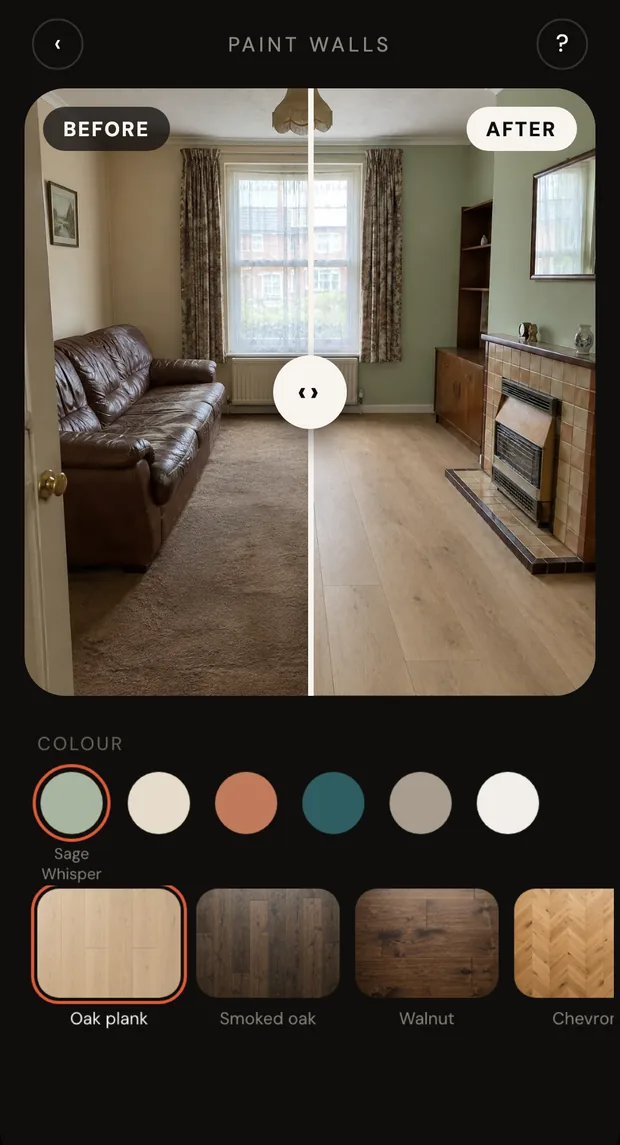
Change one thing, or everything
The Create tab splits into what you can change in a room you already have, and other places to start from. Every tool works from your own photo, plan or words.
Photo, look, compare.
Three steps from a room as it is to designs you can choose between.
Add a photo
Take a photo of the room or pick one from your library. The app has a short guide to photos that work well.
Choose a look
Pick a style, then how far to go: a light touch, a refresh or a full makeover. Or use a single-change tool such as paint, floors or lighting.
Compare and keep
Slide between before and after, set designs side by side, refine a spot, then save the one you like into a room. You are charged once the designs arrive.
More than a filter.
The redesign is the hook. Rooms, budgets, decisions and the community are what turn a picture into a finished room.
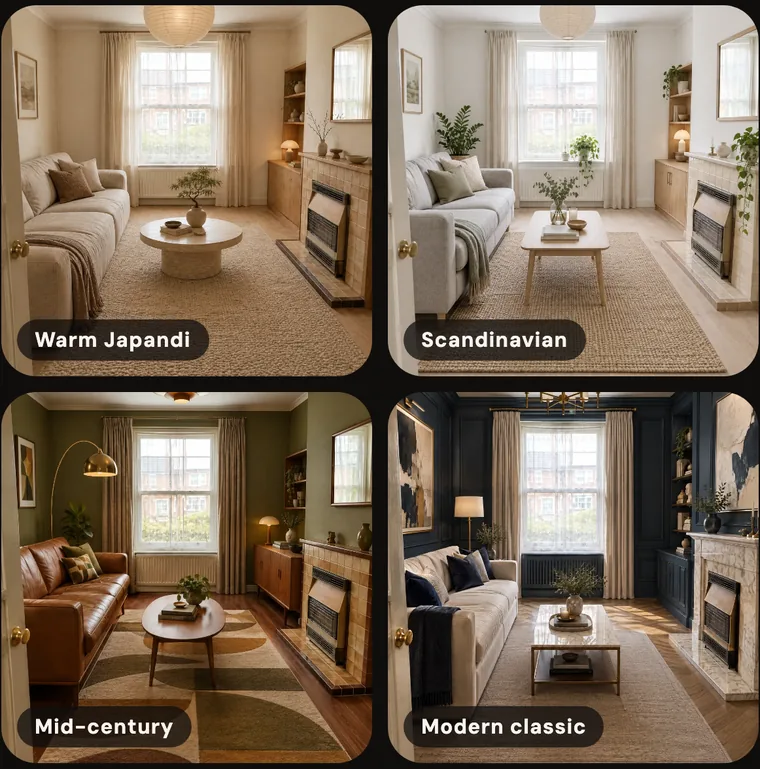
One photo, up to four designs
Upload a photo of a room, pick a style and how far to go, and HomeWow returns up to four designs of that same room to compare.
Change one thing at a time
Paint, floors, furniture, lighting, kitchen and bath, and exterior and garden each have their own tool, so a small change does not have to be a whole redesign.
Before and after
Slide between your photo and the new design, or set designs side by side to choose between them.
Refine a spot, try another angle
Edit one area of a finished design, or ask for another angle of a design you like.
Rooms with budgets
Save designs into a room, keep rooms together in a home, and add costs to see what you have spent against a target and what is still undecided.
Ask someone to pick
Compare two options for an item and send a link so a partner can vote, or share a room or home with a contractor by link.
Explore & the weekly challenge
Browse designs from the community, save the ones you love into collections, and enter the weekly design challenge.
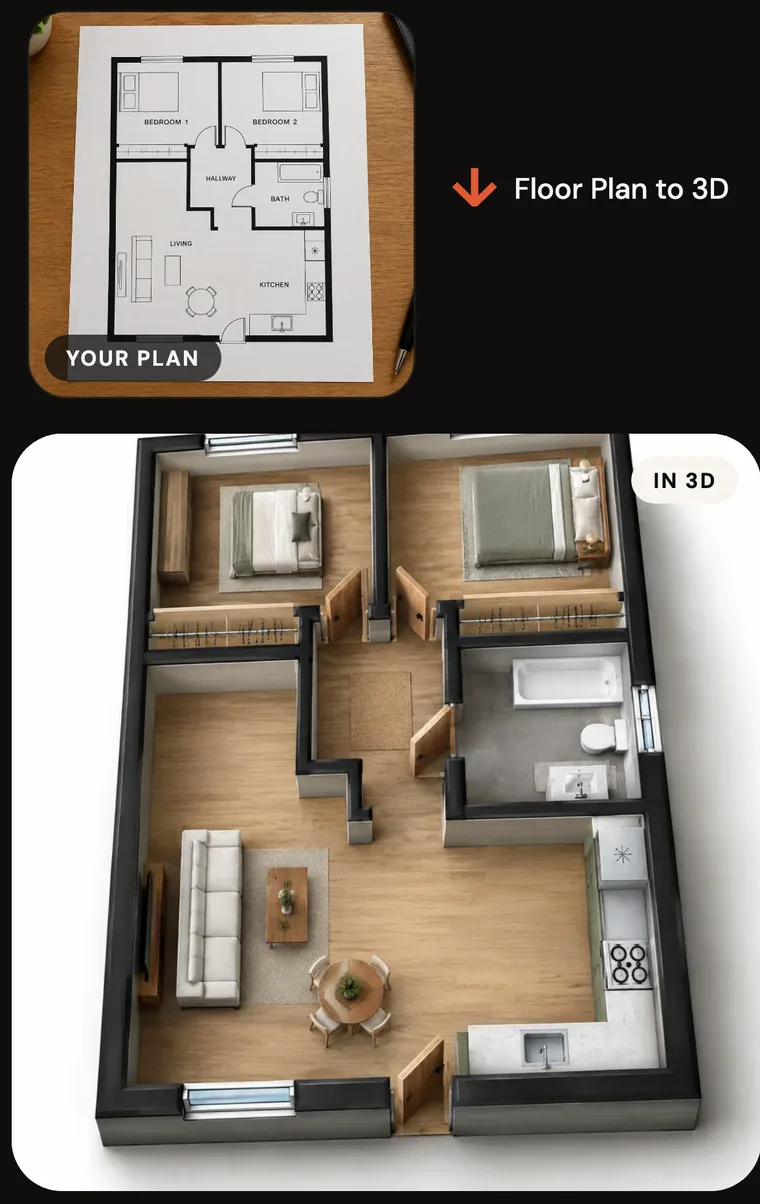
Floor plan to 3D
Turn a floor plan into a furnished 3D render, or generate every room of a home from its plan in one batch.
You are charged after your designs arrive
Every tool works in credits, and credits are only taken once your designs are ready. Start with free credits, earn more with a daily check-in, or buy credit packs that never expire.
One photo, many new rooms
Upload a photo of a room, choose a style and how far you want to go, and HomeWow generates new designs of that same room. Compare them, keep your favourite and refine the details.
-
Pick a style Warm Japandi, Coastal Calm, Quiet Luxe, Mocha Modern and more.
-
Choose how far to go A light touch changes colours and accessories, a refresh adds new finishes and a few pieces, a full makeover lets everything change.
-
Up to four designs Compare several takes on the same room from one photo.
-
Charged after they arrive Credits are only taken once your designs are ready.
Floor plan to 3D home.
Photograph or pick a floor plan and HomeWow renders it as a furnished 3D view. If you have set up a home with its rooms, you can generate every room from the plan in one go.
-
The whole plan in one image Without a home set up, HomeWow renders the entire plan as a single 3D view.
-
Or every room in one batch With a home and its rooms set up, generate every room from the plan together.
-
Save into a room Keep the results with the room they belong to, alongside its budget.
-
3D uses more credits The credits screen says so up front: 3D and new angles cost more than a standard design.
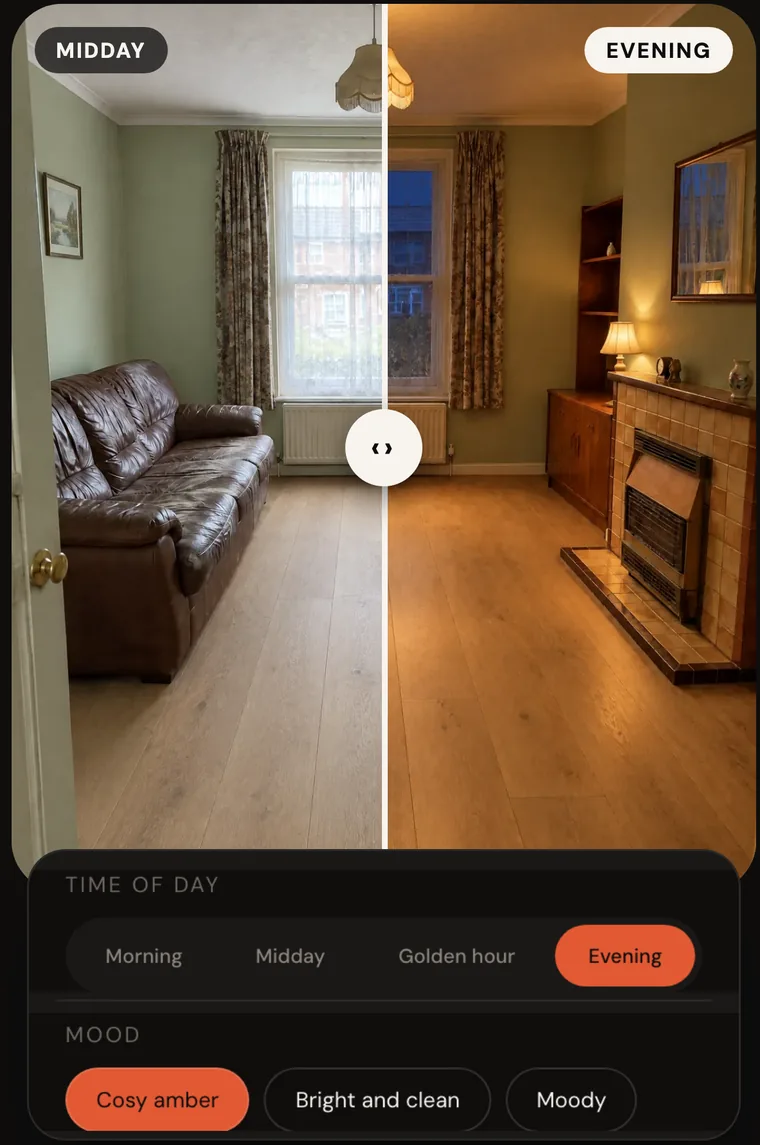
See it at every hour.
The lighting tool changes how a room feels without changing the room. Pick a time of day and a mood and compare midday with evening on your own photo.
-
Four times of day Morning, midday, golden hour and evening.
-
Pick the mood Cosy amber, bright and clean, moody or candlelit.
-
Then keep going Refine a spot or ask for another angle on the result.
Straight from inside the app
Real screens from six of the tools.
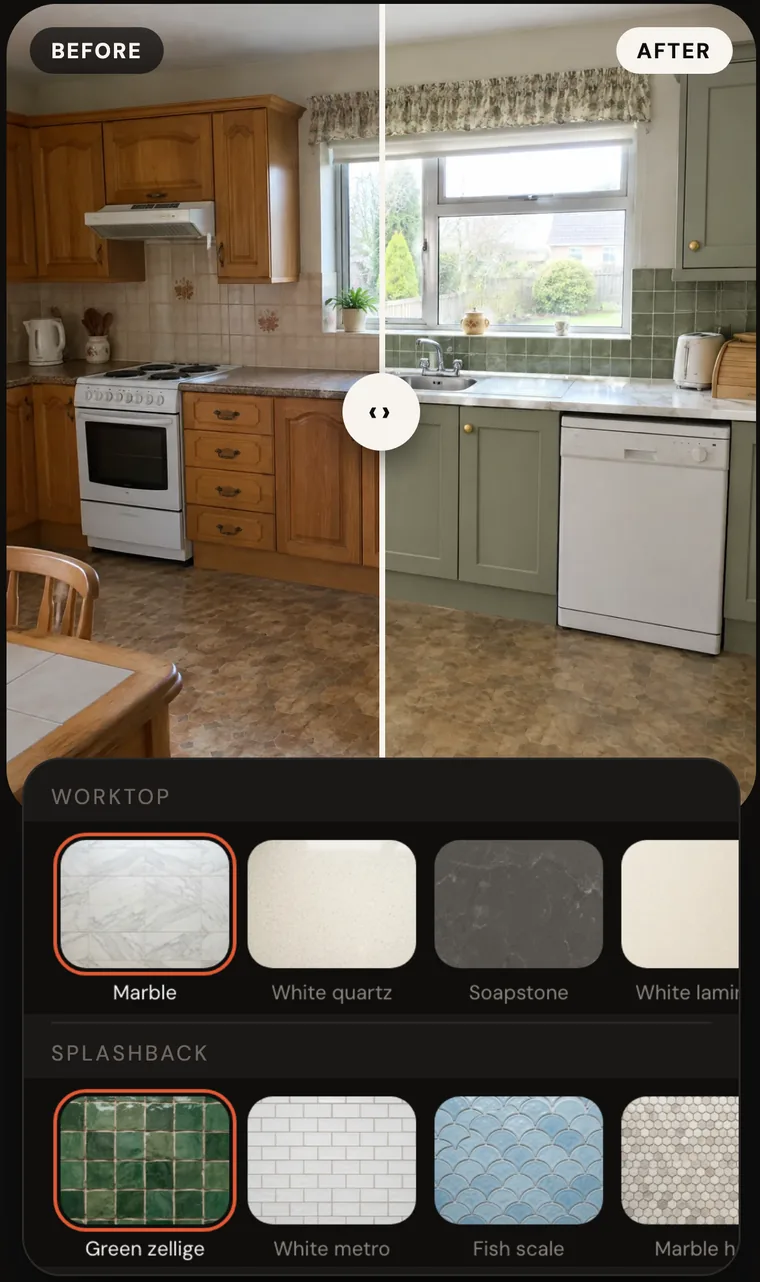
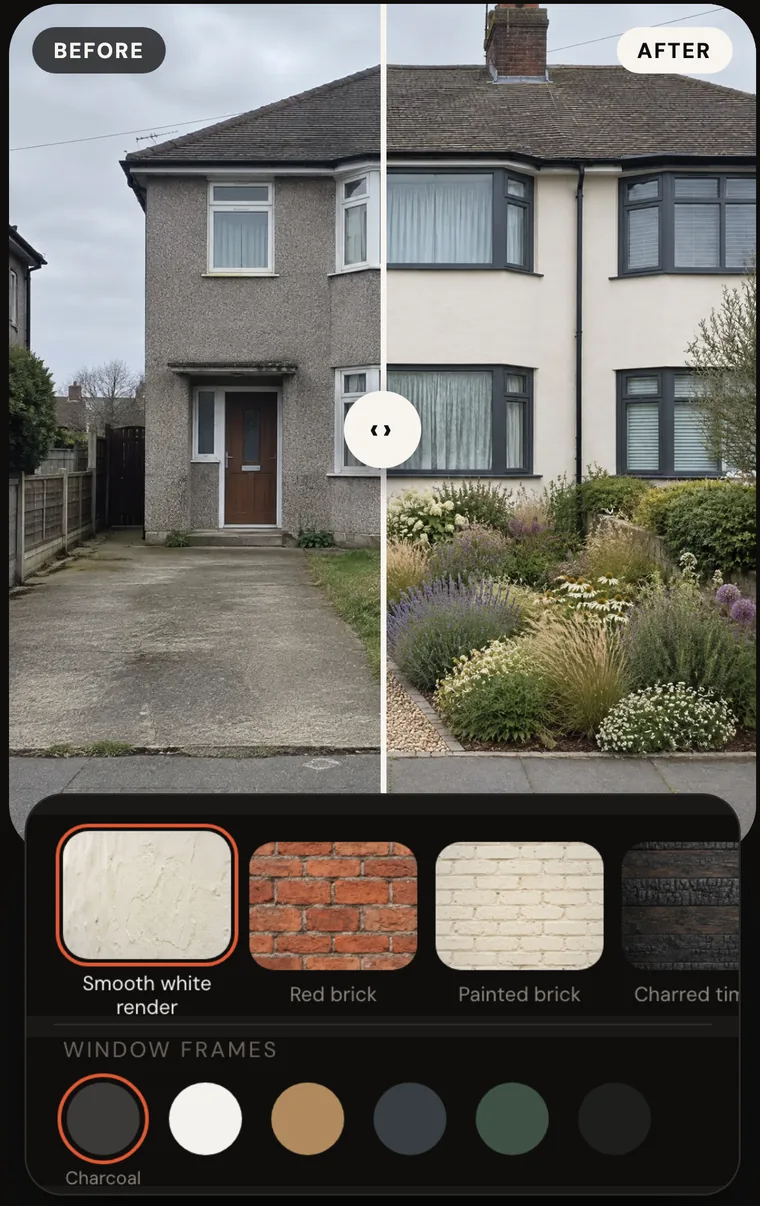
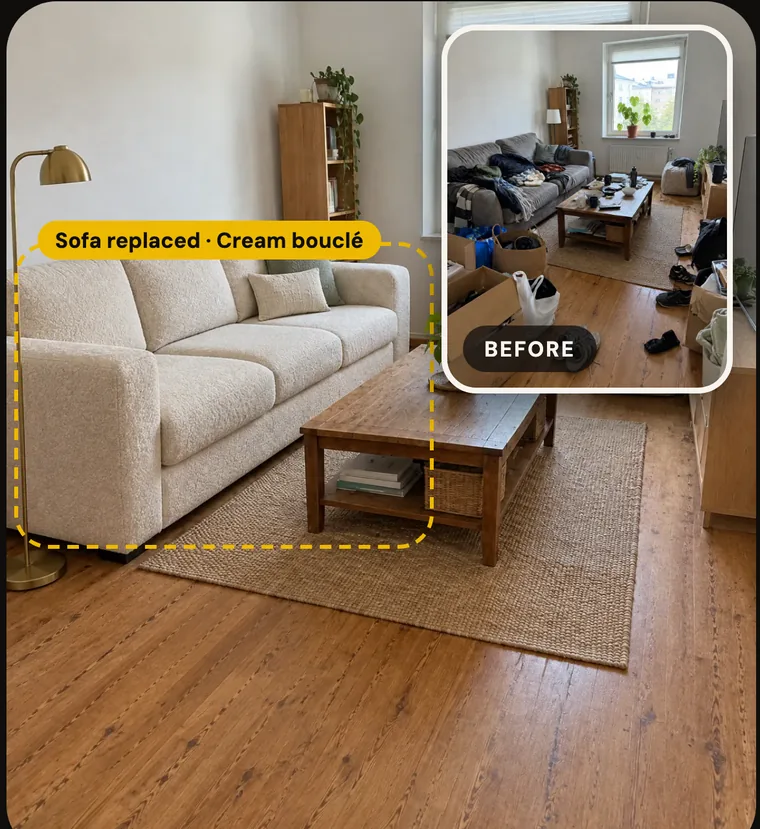
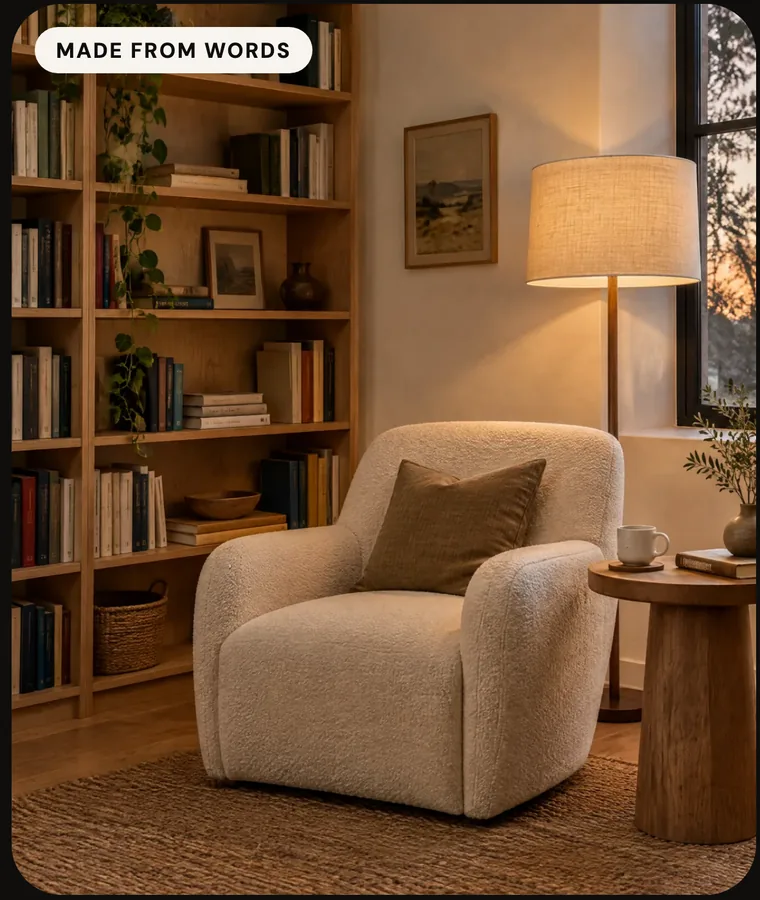
Taken from the HomeWow App Store screenshots. The rooms and designs shown are examples — what you get depends on your photo and the choices you make.
How credits work
HomeWow runs on credits. You start with free credits, each design is paid for in credits once it arrives, and Pro adds credits every week. Credit packs can be bought at any time.
Start with the appPrices, any free trial and renewal terms are set by the App Store or Google Play and are shown on the purchase screen in your region before you buy. Pro renews automatically unless you turn it off at least 24 hours before renewal, and you can cancel any time from your store subscription settings.
-
Free credits to start New accounts begin with free credits, and a daily check-in earns more.
-
Charged after your designs arrive A design is only paid for once it is ready.
-
Credit packs that never expire Top up whenever you like; unused credits stay.
-
Pro: weekly credits, no watermark Pro adds credits every week, watermark-free export and Ultra 4096px downloads.
-
A free trial where your store offers one The purchase screen shows it before you commit.
Questions, answered
The things people ask before they download.
Your next room, from one photo.
Add a photo, pick a look, and see the room the way it could be.